
- You will enter the Meeting Muted. Please remain muted throughout the meeting unless asked to UnMute for a question.
- Closed Captions will be available- click the Show Captions icon
. If it is not available on your Zoom menubar, it may be under the More (…) menu. More info on captions is available from Zoom. Captions are automatically generated, we apologize for any errors.
- A Live transcript will be available in a separate application/window, a link to a web page will be posted in the chat during the Zoom.
- The ASL Interpreter will be Spotlighted on screen next to the Speakers screen.
- Chat will be disabled on Zoom during the lecture to better serve people using screen readers. Participants will still be able to message the hosts with questions or broadcast problems..
- When it comes time for the Q&A, people may ask in person, by asking in the chat so the host can read it out loud, or by raising their hand on Zoom so the host can call on them to ask by voice or by ASL. The host will send a request asking you to Unmute, and you will need to say Yes. You may have your camera on or off.
- For those connected to the call by telephone:
- Press *6 to UnMute yourself and *6 again to Mute.
- Press *9 to raise your hand
Updated info on September 28, 2025, regarding Zoom’s new chat format:
Due to recent changes in Zoom, because Chat is disabled between participants, things have changed in how to Chat with Access Mob.
For Computers:
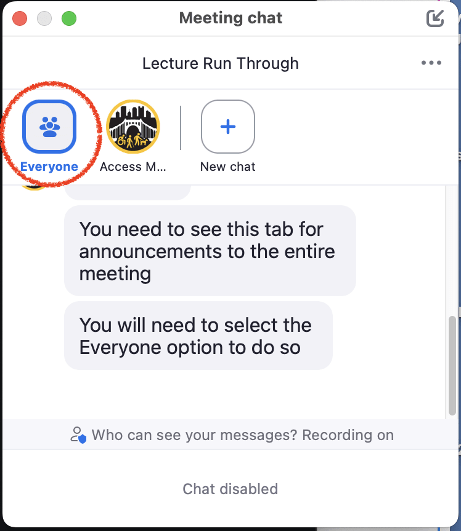
In order to Chat with Access Mob, you will need to click on the chat button at the bottom of your Zoom window. When the Chat window pops up, you can start a new chat by clicking on the “New chat” + button, which is the second button on the top of the chat window, and in the “To:” field select “Access Mob Pittsburgh (Host)” (which should be the only choice) and then type your question in the message text box. When you are done typing, click the triangular send button to the right of the text box. See the images below for example:
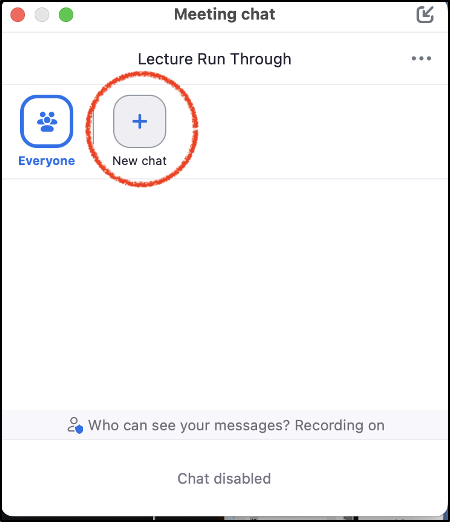
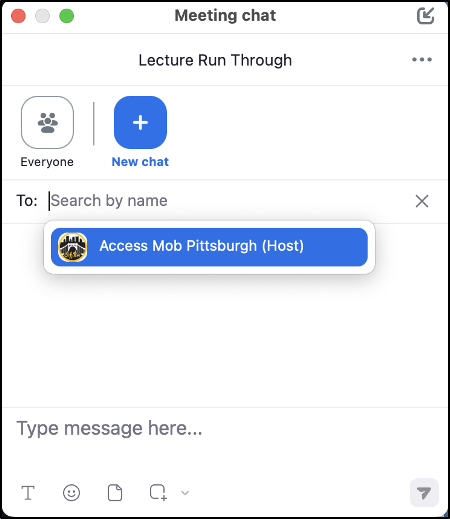
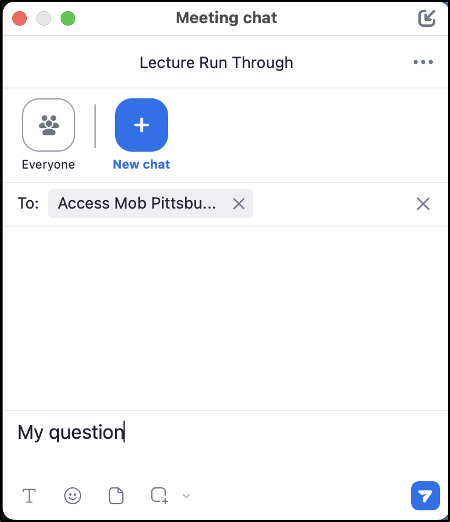
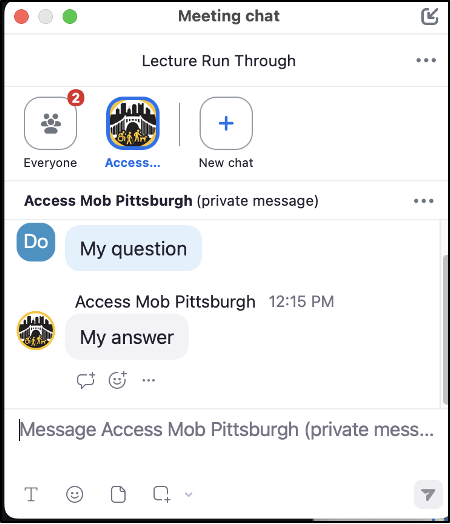
In the last image, the red badge with the number 2 on the Everyone button indicates that there are 2 messages in the chat to Everyone. To see messages sent to everyone once you have sent a message to Access Mob, you will need to switch back to the “Everyone” Chat, the first button at the top of the chat.
For Mobile Devices:
In order to Chat with Access Mob, you will need to click on the chat button at the bottom of your Zoom window. When the Chat window pops up, you can start a new chat by clicking on the “New chat” + button, which is the second button on the top of the chat window, and in the “To:” field select “Access Mob Pittsburgh (Host)” from the list of the participants (at or near the top) by clicking the circle to the left of its name so that a check mark appears, then click “OK” in the upper right. Then type your question in the message text box. When you are done typing, click the triangular send button to the right of the text box. See the images below for example:
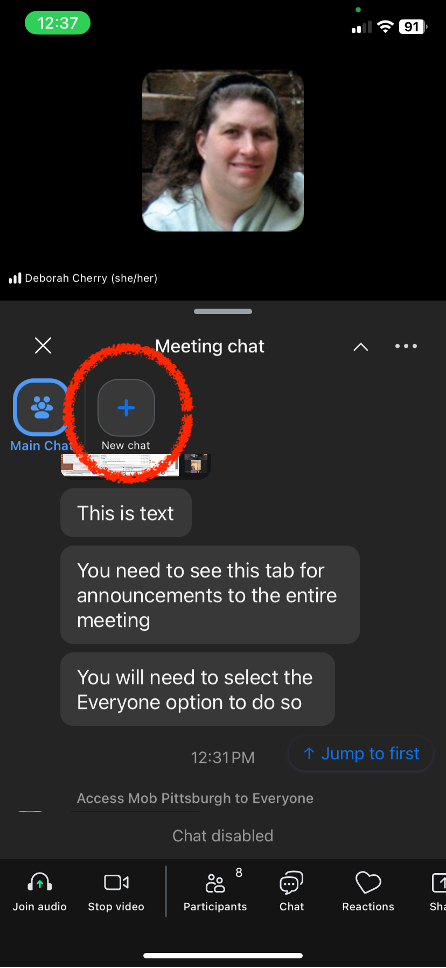
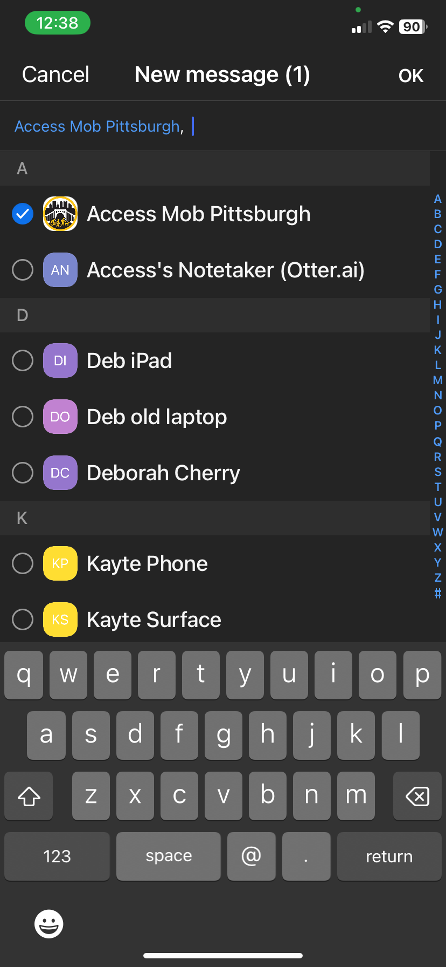
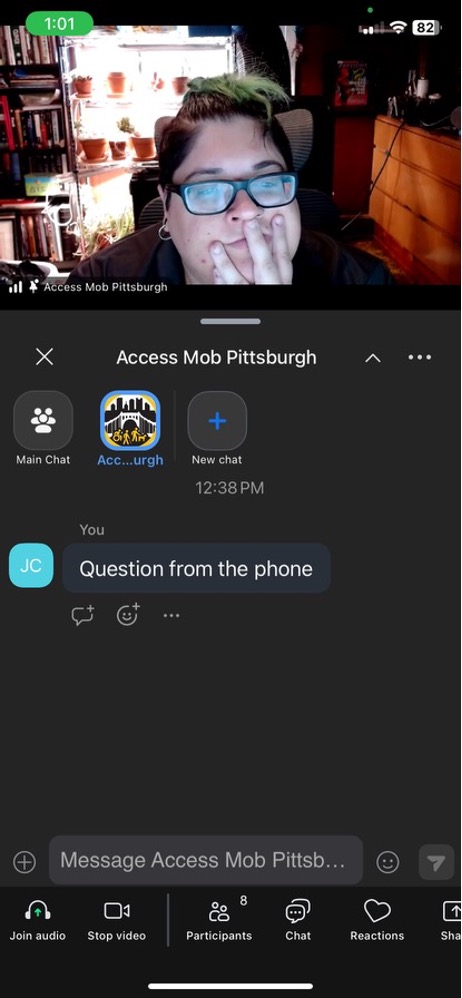

To see messages sent to everyone once you have sent a message to Access Mob, you will need to switch back to the “Main Chat,” the first button at the top of the chat. If there is a red badge with a number on the Main Chat button it indicates the number of messages in the Main Chat for everyone.
 Access Mob Pittsburgh